The Photographer’s Post-Shoot Ritual: 5 Steps to Safeguard Your Precious Shots
You’ve just wrapped up an amazing photoshoot. The excitement is palpable as you rush back to your computer, eager to see your masterpieces on the big screen. But wait! Before you dive into editing, there’s a crucial ritual every photographer should follow. Let’s walk through the five essential steps that will keep your photos safe, organized, and ready for your creative magic.
1. Import Your Photos with Lightroom: Don’t Leave Them Hanging!
Why It Matters
Picture this: You’ve left your photos on your memory card for weeks, juggling multiple shoots. Suddenly, your card corrupts. Poof! All that hard work vanishes into thin air. Scary, right?
What to Do
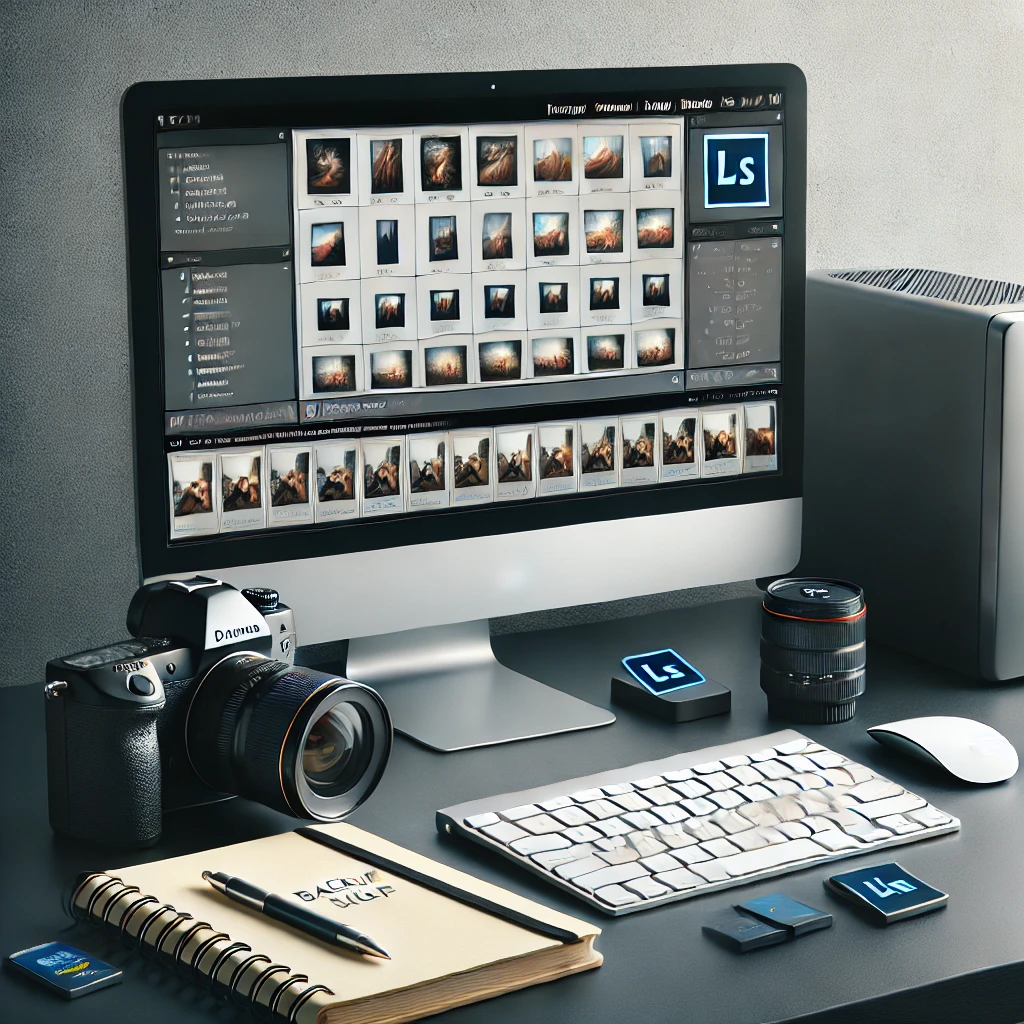
Fire up Lightroom and import those photos right away. It’s not just about safety; it’s about peace of mind. Lightroom makes this process a breeze, and you’ll thank yourself later when everything’s neatly organized from the get-go.
2. Master Your Folder Structure: Your Future Self Will Thank You
Why It Matters
Imagine trying to find that perfect shot from last summer’s wedding… in a sea of unnamed folders. Frustrating, time-consuming, and potentially embarrassing if you’re on a deadline.
What to Do
Whether you’re a Lightroom wizard or prefer the simplicity of Explorer or Finder, create a folder structure that speaks to you. Use dates, keywords, or client names – whatever helps you find things fast. Lightroom’s organizational tools are powerful, but the key is consistency. Pick a system and stick to it.
3. Backup, Backup, Backup: Your Photos’ Guardian Angel
Why It Matters
Hard drives fail. Computers get stolen. Coffee spills happen. Without a backup, you’re one accident away from losing irreplaceable memories or, worse, a client’s precious moments.
What to Do
As soon as those photos are imported, back them up. Use an external drive, a cloud service, or both. It takes minutes but can save you from heartache. Think of it as insurance for your creativity.
4. Keyword Magic: Future-Proof Your Photo Library
Why It Matters
Fast forward a year. A client wants photos of “that sunset wedding by the lake.” Without keywords, you’re in for hours of scrolling. With them? A quick search, and you’re done.
What to Do
Use Lightroom’s import dialog to add keywords. Think location, event type, prominent features, or emotions. It’s like leaving breadcrumbs for your future self. A few seconds now saves hours later.
5. Rate and Cull: Your Portfolio’s First Line of Defense
Why It Matters
We all take shots we’re not proud of. But imagine a client scrolling through ALL your photos, including the blurry ones. Yikes! Rating helps you quickly surface your best work and maintain your professional image.
What to Do
Use Lightroom’s rating system (1-5 stars) or color labels. Be ruthless! This initial cull helps you focus on your best shots for editing. Pro tip: Use caps lock in Library mode to speed through photos, hitting number keys to rate as you go.
Remember, these steps might feel like extra work after a long shoot, but they’re your safety net. They protect your art, streamline your workflow, and keep you organized as your photography business grows. So, take a deep breath, grab a coffee, and give your photos the homecoming they deserve. Your future self will thank you!
Related Posts

Make Your “Online First Impression” Count – BiY Talk, June 2013
Exposure Explained…. via Beer?
Creating Depth: Understanding the Importance of Foreground, Middleground, and Background
10 Reasons Why Photography Workshops Work!
Lightroom Recovery – Transforming a Dull Day Landscape
Drone Virtual Tours…
You’re Hired………
Why do Photography? 3 Appreciation for Nature and Surroundings